

Find your way around
Filtyr has three columns. The left menu picks a list. The middle column shows that list. The right side shows the Conversation you opened.
Do you not see the left menu? Make the window wider, or zoom out with Ctrl and minus (⌘ and minus on a Mac). Filtyr hides the left menu when the window is narrow.
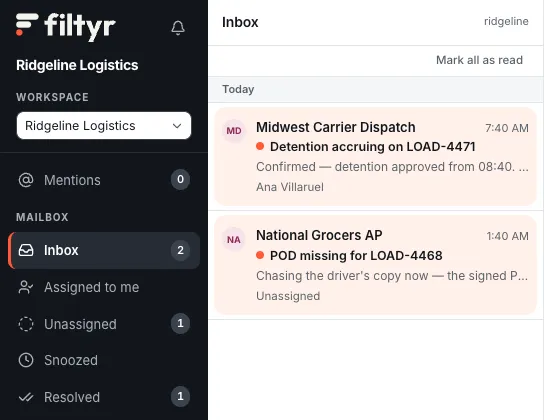
The left menu
Section titled “The left menu”From top to bottom:
- The bell. Your activity: new mail, mentions, assignments. Click Mark all read to clear it.
- Mentions. Every Comment where someone @mentioned you.
- Inbox, Assigned to me, Unassigned, Snoozed, Resolved. The shared mailbox, cut five ways. Pick one and the list shows only that.
- Groups. One row for each Group you are in, with how many Conversations are open and how many have nobody on them.
- Tags. Your own Tags. Click one to see the open Conversations you gave it.
- Personal. Only if you connected your own Gmail. See Your own Gmail.
The Conversation list
Section titled “The Conversation list”A Conversation is one email thread with everything your team did on it. The newest is at the top, grouped by Today, Yesterday, This Week and then by month. Bold rows are unread. Click Mark all as read to clear a whole list.
Open a Conversation
Section titled “Open a Conversation”Click a row. The emails and your team’s Comments show together in one timeline.
Across the top are the controls for this Conversation:

- Status. Open, Snoozed or Resolved. Snooze hides it until Later today, Tomorrow, Next week or a time you pick. If the customer replies first, it comes back early.
- Assignee and Co-assignee. Who is working on it. The assignee button shows the person’s name, or Unassigned. See Work with your team.
- Group. Which Group it belongs to. The button shows the Group’s name, or No group.
- Watch. Follow it in your bell without being assigned.
- Mark as unread. Puts it back in bold for later.
Tags are labels you add to a Conversation. They are yours alone: nobody else sees them.
- Open a Conversation.
- Click + Tag.
- Pick a Tag, or type a new name to create one.
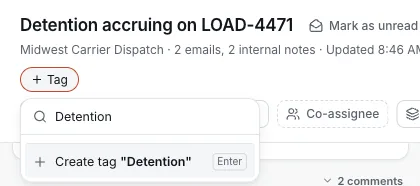
Your Tags then show in the left menu under Tags.
Private note
Section titled “Private note”The Private note on the right is a scratch pad for one Conversation. Only you can read it. Click Save when you are done.