

Your own Gmail
You can also bring your own work Gmail into Filtyr. It is optional. Your own mail stays private to you until you choose to share a Conversation.
Connect it
Section titled “Connect it”- Click your account button at the bottom of the left menu.
- Click Settings, then Mailboxes.
- Click Connect my Gmail.
- Sign in to your own Google work account and allow access.
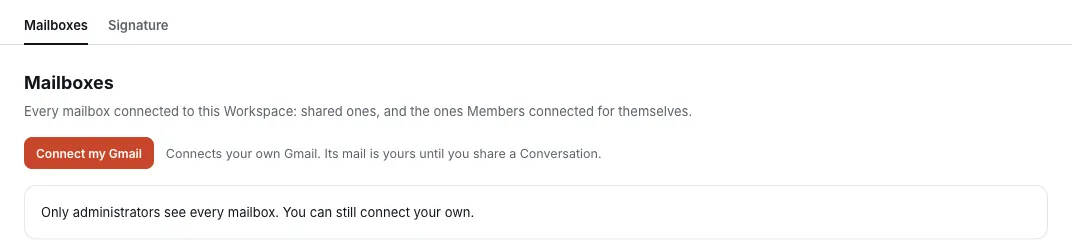
You can only connect your own address. When it shows Connected as your address, your mail appears in the left menu under Personal. Filtyr brings in about the last week of mail. Older mail stays in Gmail.
If it later shows Needs reconnect, click Reconnect and sign in again.
Who sees it
Section titled “Who sees it”- Your teammates cannot read Conversations from your own Gmail.
- Your Workspace administrator cannot read them either. They can see that you connected a mailbox, and its address.
- Filtyr support staff who are Members of your Workspace can read them, to help fix problems.
- Only you can reply to them.
Share one Conversation with a Group
Section titled “Share one Conversation with a Group”Use this when your team needs to see one email.
- Open the Conversation from your Personal inbox.
- Click Share with….
- Pick the Group and click Share.
Everyone in that Group can then read the Conversation, its past and future mail, and its Comments. They cannot reply. A share cannot be taken back.
Share with one person
Section titled “Share with one person”@mention them in a Comment on the Conversation. Filtyr asks whether to share it. Choose the option with their name to share with that one person only. They can read and comment, and nothing else.