

Work with your team
Your team talks about an email right next to it, in Comments. The customer never sees them.
Write a Comment
Section titled “Write a Comment”- Open the Conversation.
- Click Internal comment under the timeline.
- Write your Comment. You can attach files with Attach files.
- Click Post.
In the timeline, a Comment is marked Internal: never sent to the customer. Hover over a Comment to Reply to it or Add reaction.
Mention a teammate
Section titled “Mention a teammate”Type @ and start typing a name. Pick the person from the list. They get it in their Mentions and in their bell.
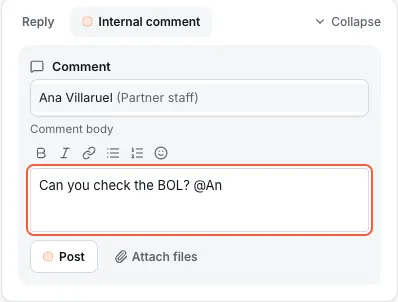
If the person cannot read this mailbox, Filtyr asks before posting: Someone you mentioned cannot see this email. Choose Share and comment to let them read and comment on this one Conversation, or Cancel and take the mention out.
Assign a Conversation
Section titled “Assign a Conversation”- Assignee is the one person who owns the Conversation. Click the button with the assignee’s name (it says Unassigned when nobody has it) and pick a name, or pick Unassigned to give it back.
- Co-assignee adds more people who are helping. The assignee cannot also be a co-assignee.
The person you assign is told in their bell, and the Conversation shows in their Assigned to me.
Move a Conversation to another Group
Section titled “Move a Conversation to another Group”- Open the Conversation.
- Click the button with the Group’s name. It says No group when there is none.
- Pick the Group. The list shows only the Groups you are in.
A Group can only take mail from mailboxes it is allowed to read. If it cannot read this Conversation’s mailbox, Filtyr says so and the Conversation does not move. Ask your administrator if you think it should be allowed.
Watch a Conversation
Section titled “Watch a Conversation”Click Watch to follow a Conversation in your bell without owning it. Click Watching to stop.