

Reply to mail
When you reply in Filtyr, the email goes out from the shared mailbox, the same as if you had sent it from that Gmail account.
Send a reply
Section titled “Send a reply”- Open the Conversation.
- Click Reply under the timeline.
- Check To. It starts with the person who sent the newest email. Add more people in Cc.
- Write your reply. Use the toolbar for bold, italic, links and lists.
- Click Send, or press Ctrl+Enter (⌘+Enter on a Mac).
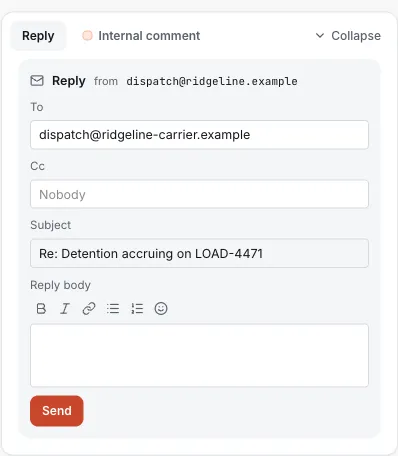
The subject is filled in for you and cannot be changed.
What the customer sees
Section titled “What the customer sees”- The email comes from the shared mailbox address. Filtyr shows that address above the Reply box, after Reply from.
- It does not say which person on your team wrote it.
- They never see your team’s Comments, Tags or private notes.
Your signature
Section titled “Your signature”Set it once in Settings → Signature. It is added under every reply you write. In a single reply you can click the × next to the signature to remove it, or Add signature to bring it back.
If Filtyr shows a warning after you send
Section titled “If Filtyr shows a warning after you send”Sometimes Gmail takes a while to confirm a sent email. Filtyr then shows a card at the top of the page. Do not send the reply again. Look in the shared mailbox’s Sent folder in Gmail. If the email is there, it went out. Click Dismiss when you have checked.
Who can reply
Section titled “Who can reply”Anyone who can read a shared mailbox can reply from it. On a Conversation someone shared with you from their own Gmail, only they can reply; you can read and comment.